How to Request Support#
All support requests must be submitted via the Stakater Support Portal to ensure proper tracking and SLA compliance.
👉 Support Portal: https://stakater-cloud.atlassian.net/servicedesk/customer/portals
1. Create an Account (First-Time Users)#
If you are a new user, follow the steps below to register.
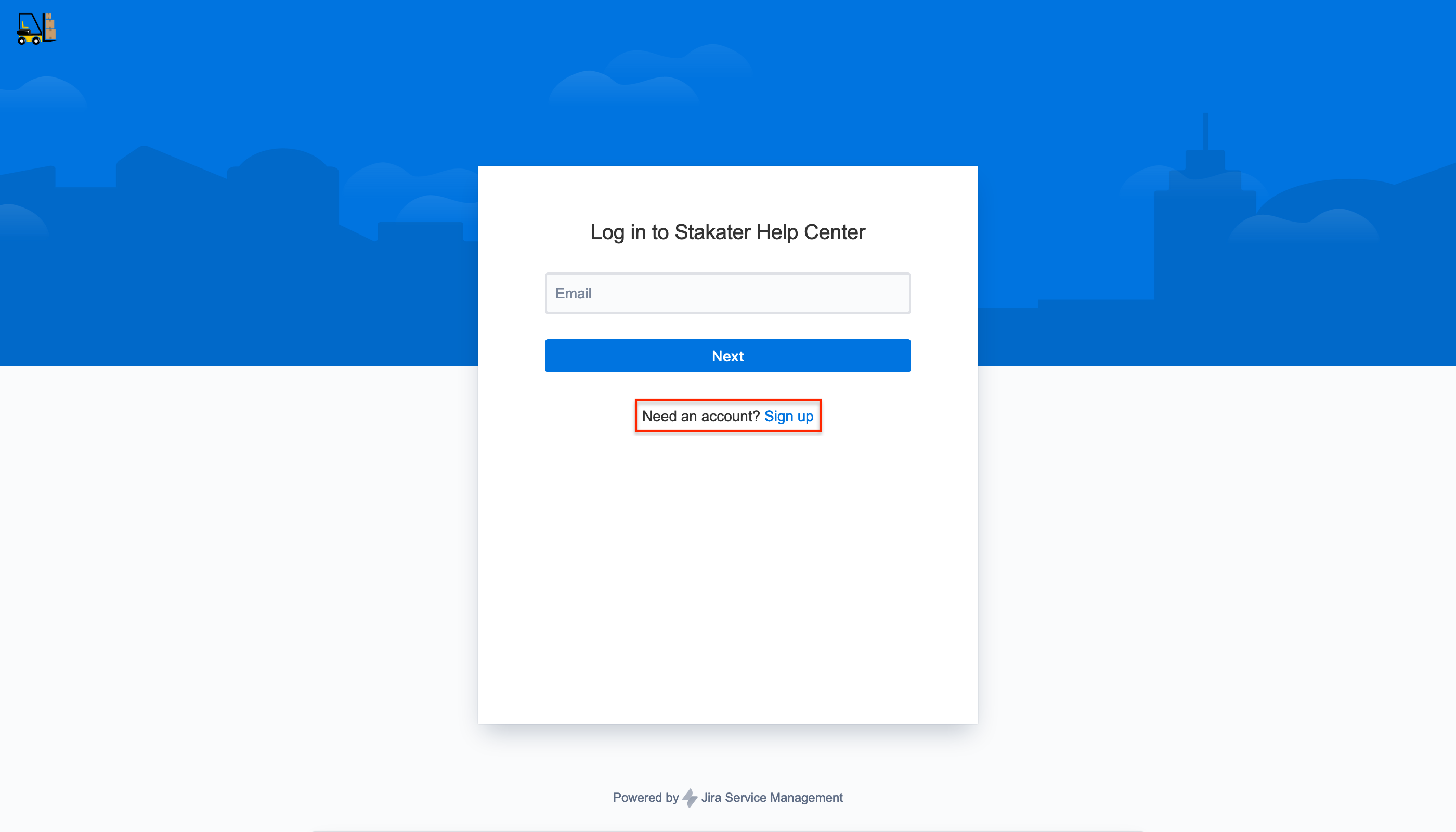
Step 1 — Go to the Support Portal#
Visit the portal and click Sign up.
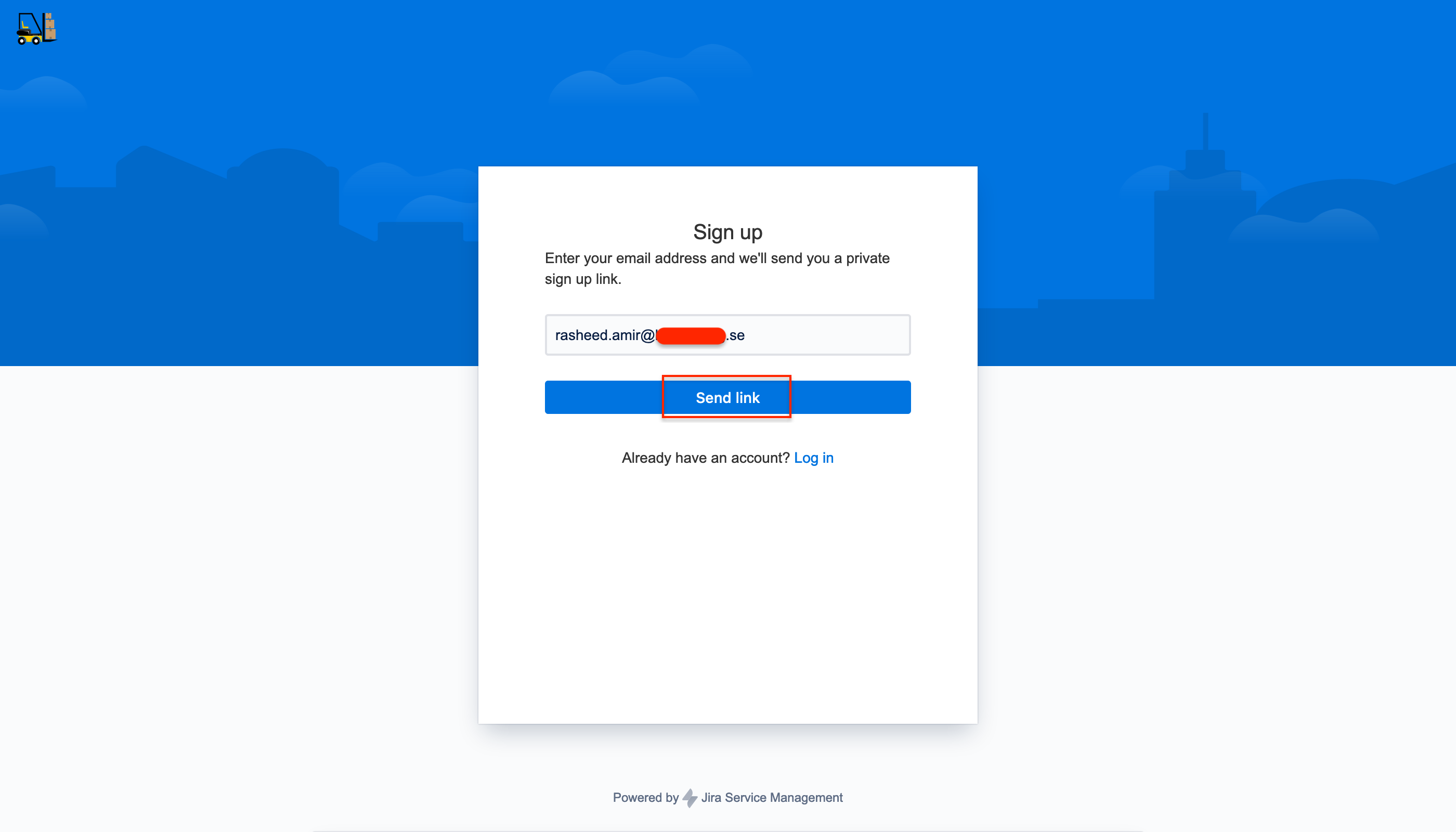
Step 2 — Enter Your Official Company Email#
Enter your company email address and click Send link.
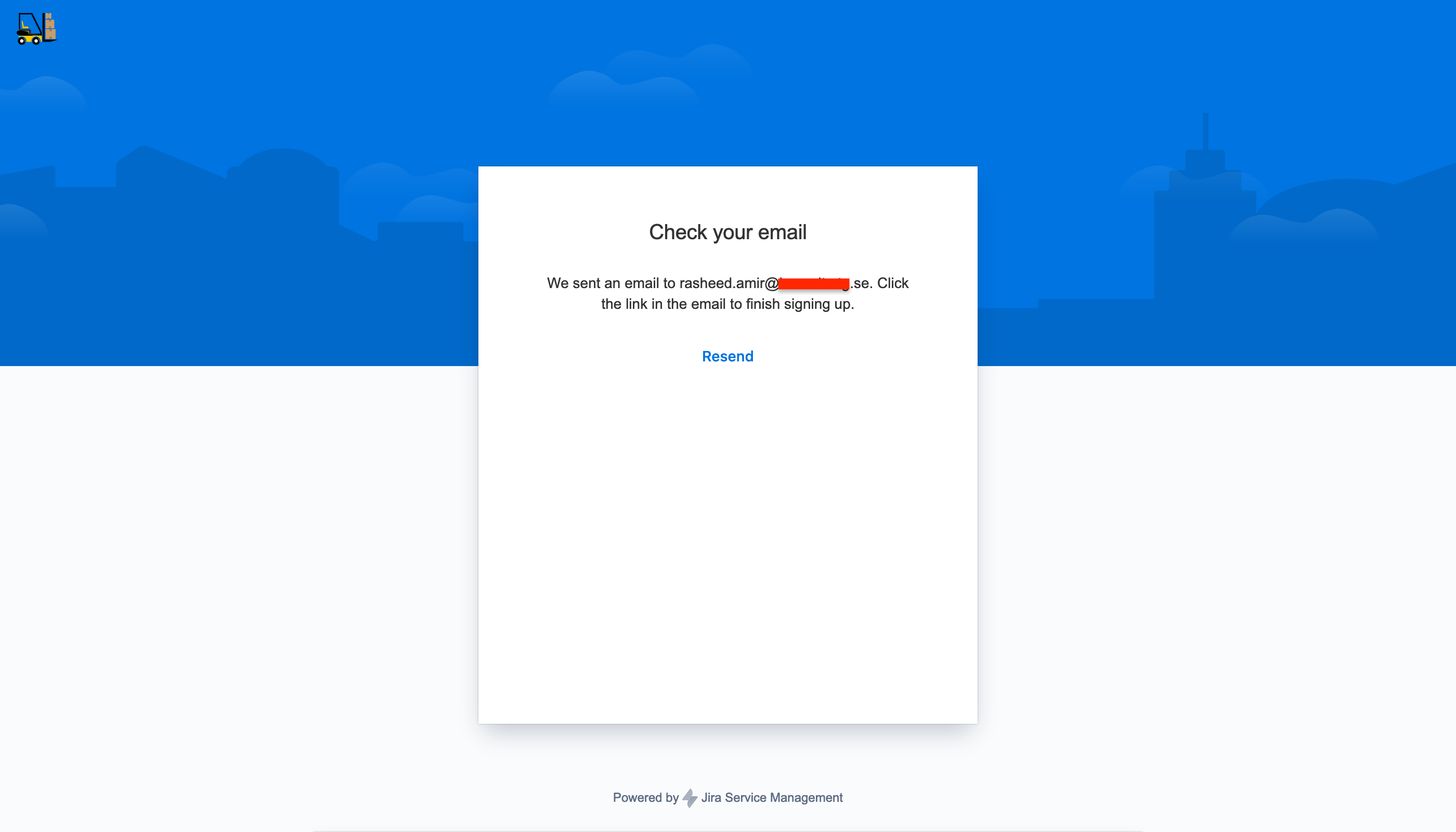
You will be redirected to the following page:
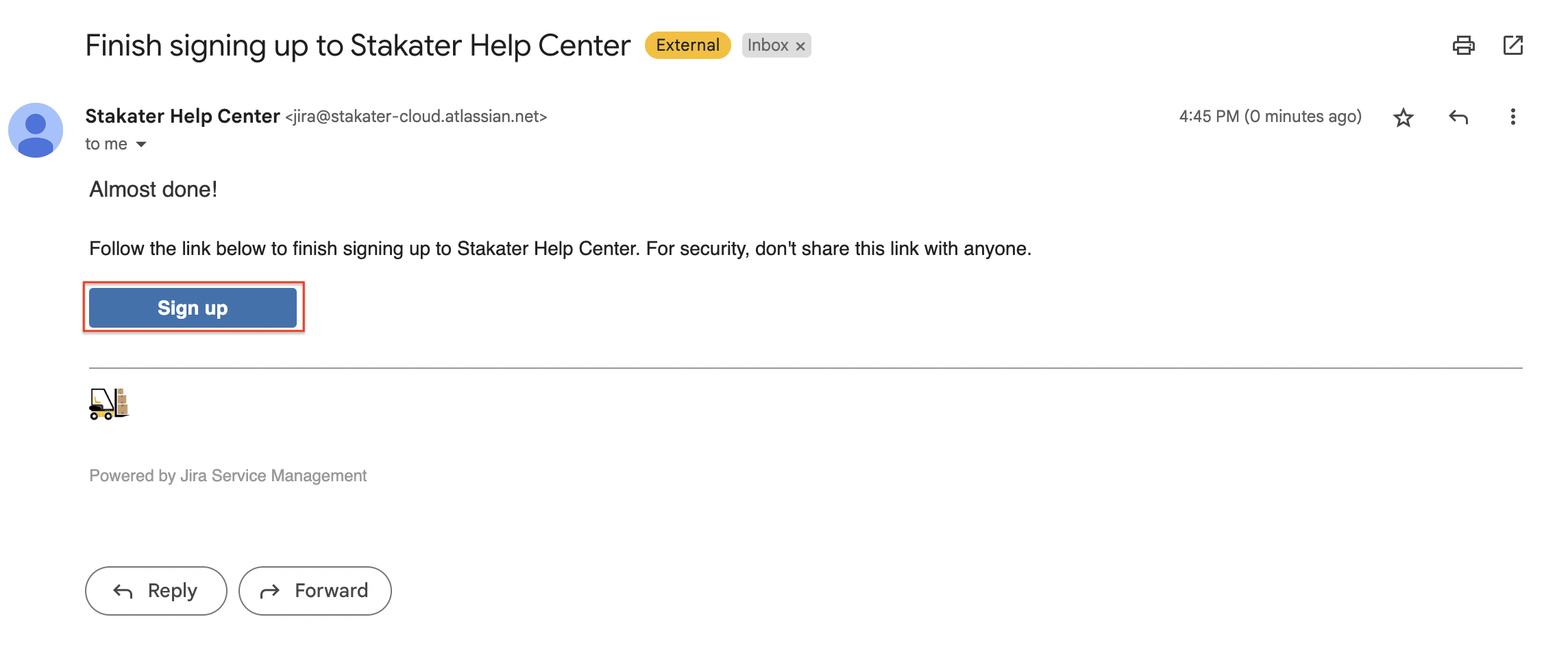
Step 3 — Complete Registration#
Check your email and click Sign up.
Provide your full name and a strong password, then click Sign up.
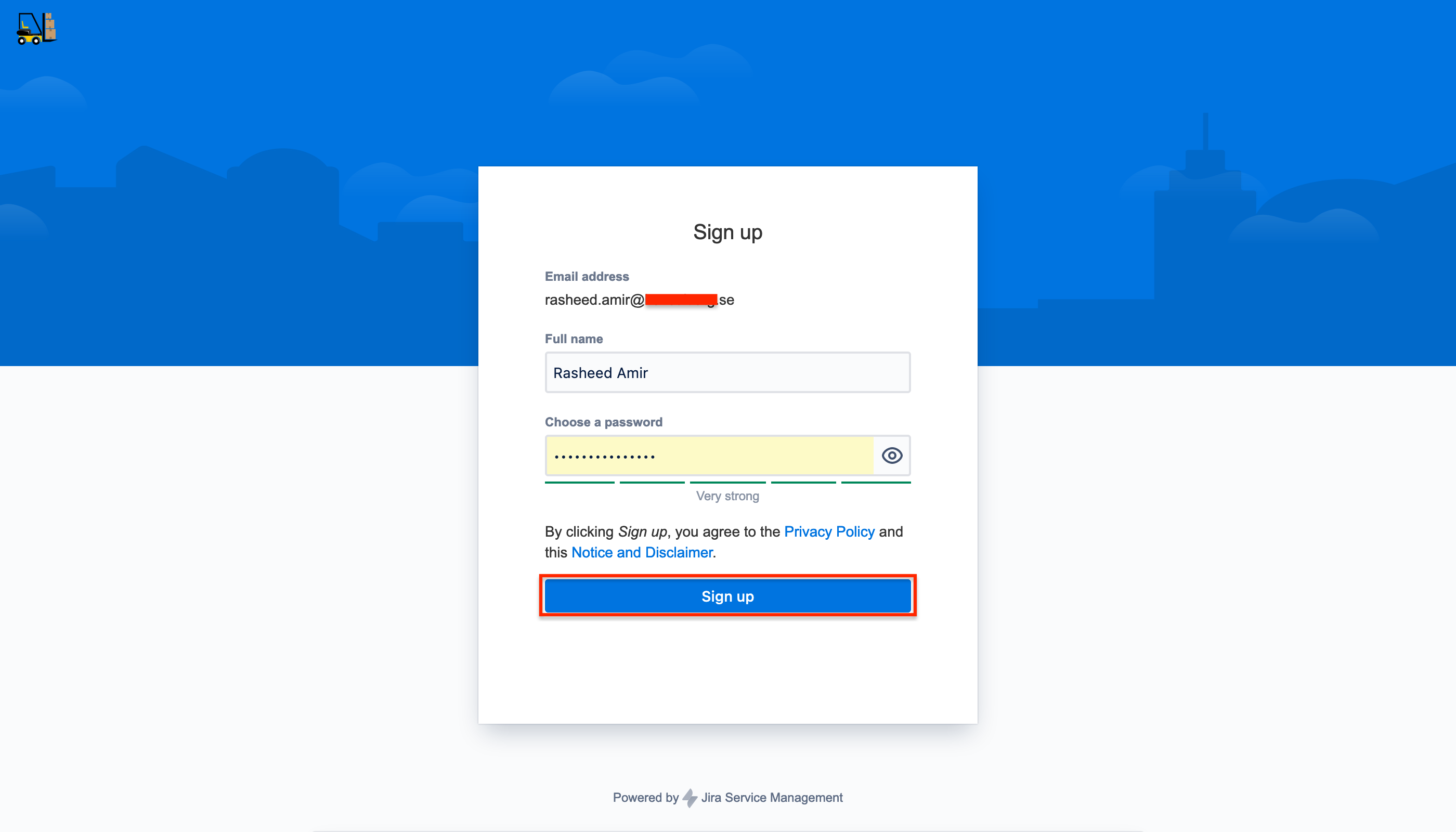
Your account must be registered using your official company email address.
2. Submit a Support Request#
Once registered:
- Log in to the Support Portal.
- Select the appropriate request type.
- Provide a clear summary and detailed description.
- Select the appropriate severity (P1–P4).
- Submit the request.
Support requests can be created directly from the portal dashboard:
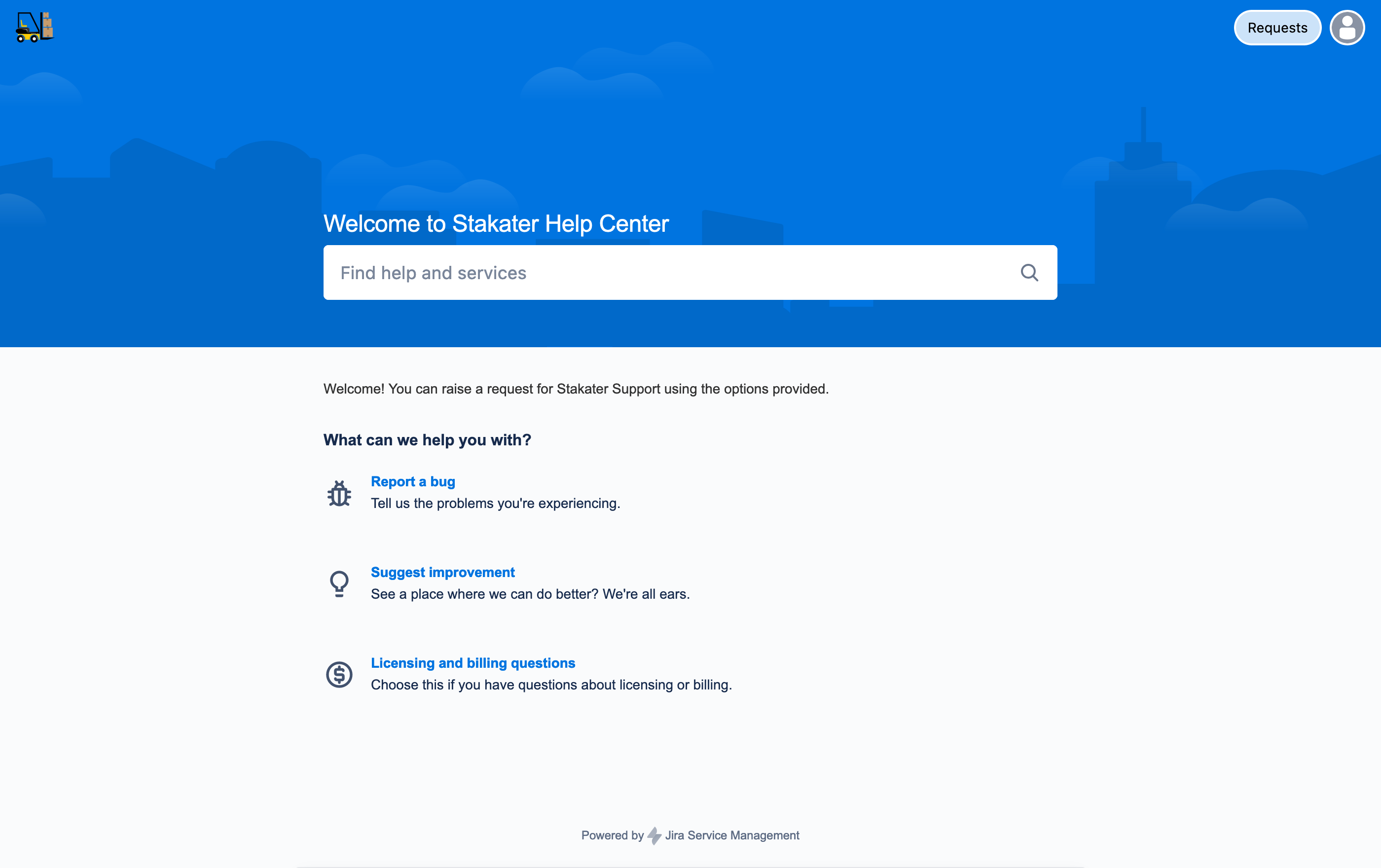
SLA response times begin once the ticket is properly submitted.
3. Selecting the Correct Severity#
Severity must reflect actual business impact.
- P1 – Critical → Production outage, no viable workaround.
- P2 – High → Major degradation with significant impact.
- P3 – Medium → Limited impact; workaround available.
- P4 – Low → Information request or minor issue.
If severity is incorrectly selected, Stakater may adjust it based on actual impact.
For detailed definitions, see Severity & Response Framework.
4. Provide Complete Information#
To accelerate investigation, include:
- Environment (e.g., production, staging)
- Product or service affected
- Error messages or logs
- Steps to reproduce (if applicable)
- Impact description
- Any recent configuration changes
Incomplete information may delay resolution.
5. Share a Request with Other Users#
By default, only the ticket creator can view a request.
To share it:
- Open the request.
- Add additional users in the Shared with field.
- Those users will gain access and receive notifications.
6. Premium Customers – Critical Incident Escalation#
If you are a Premium customer reporting a P1 – Critical issue:
- Submit the ticket immediately via the Support Portal.
- Use agreed emergency communication channels (e.g., Slack or phone) if applicable.
Escalation begins once the P1 ticket is logged.